Ready Tagged Orders

Contents
To complete the batch process of Marking all of the tagged records as Ready (Yes) and the Date Ready (Today) then click on the Prep Tagged Orders button, as shown below.
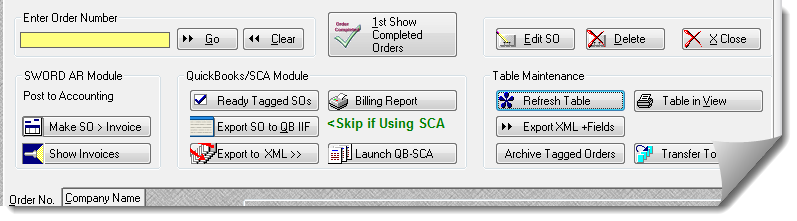
Each Tagged SO with be automatically changed with a Ready field of 'Yes' and the Date Ready equal to Today. Also, if the SO Schedule Date = 0 THEN SO Schedule Date will become the same as the SO Due Date. Else if the SO Completion Date is 0 THEN the SO Completion Date will become the same as the SO Schedule Date.
| • | Once the Orders are Ready to bill, they may be exported as QuickBooks IIF for direct import by QuickBooks as invoices, or; |
| • | Exported as an XML file, which can be used by the optional Special Commerce Agent (SCA), which can transfer the Orders into QuickBooks. |
Related Topics:
User Tip: Use the Print Table in View [button] as a scratch pad for orders that you are getting ready to bill or post to accounting.